Real control over your Mac’s battery limit.
BatFi is a battery charge limiter for Mac. Stop charging at 80%, or hold any limit. Change it by time and place. Charge to 100% the moment you need it.
macOS Sonoma 14.8 or later, Apple silicon. A licence is required. Buy one, $15

Rules that follow you. Hold 60% at your desk, top up before you leave, charge fully at the weekend.
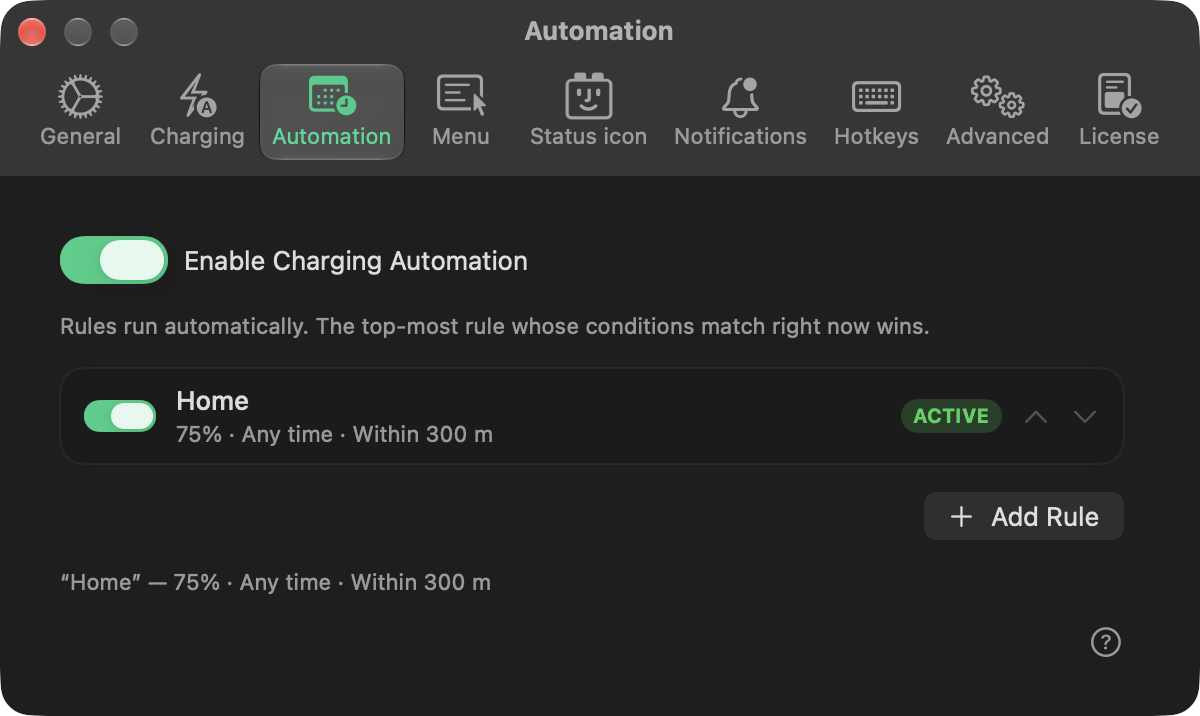
Beyond the limit in macOS.
Since macOS Tahoe 26.4, a Mac with Apple silicon can stop charging anywhere from 80% to 100%.
| macOS | BatFi | |
|---|---|---|
| Charge limit | 80% to 100% | 50% to 100% |
| Rules by time | no | yes |
| Rules by place | no | yes |
| Pause when hot | no | over 40°C |
It runs on macOS Sonoma 14.8 and later. With BatFi, turn off the limit in macOS and Optimized Battery Charging. Pausing when hot is a setting in BatFi, on Macs that have never had macOS 27 installed.
And everything macOS keeps buried. The readings, the switches and the shortcuts it never puts in front of you.
-
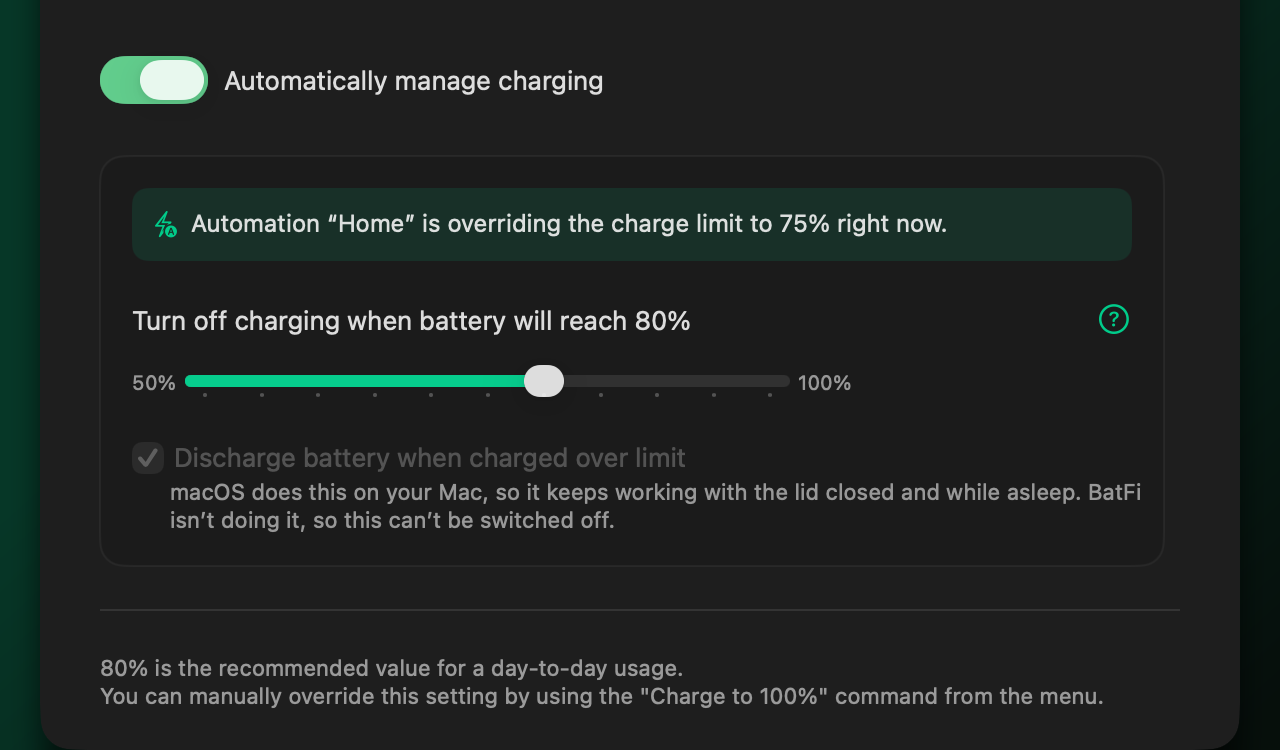
Stop charging at 80%, or charge to full.
A limit for every day, and a full charge before a flight.
-
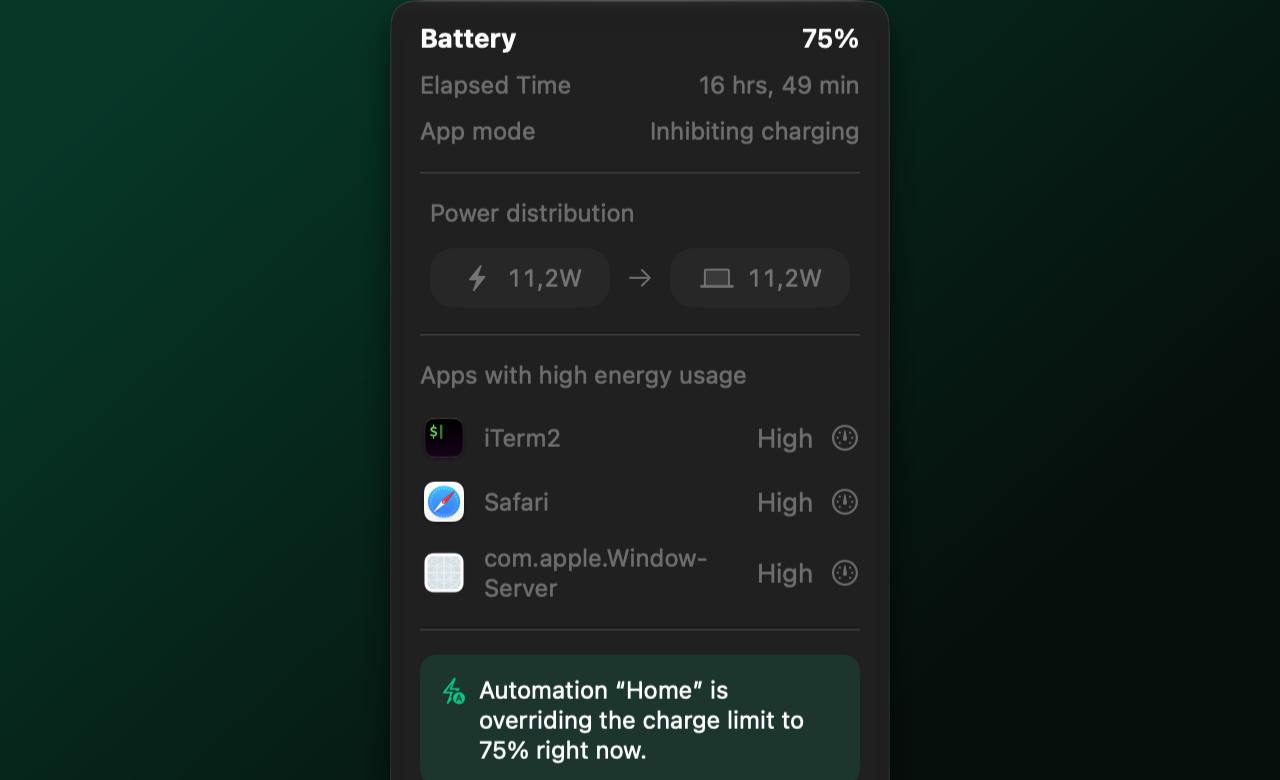
What is drawing your power.
Watts in, watts out, and the apps burning it right now.
-
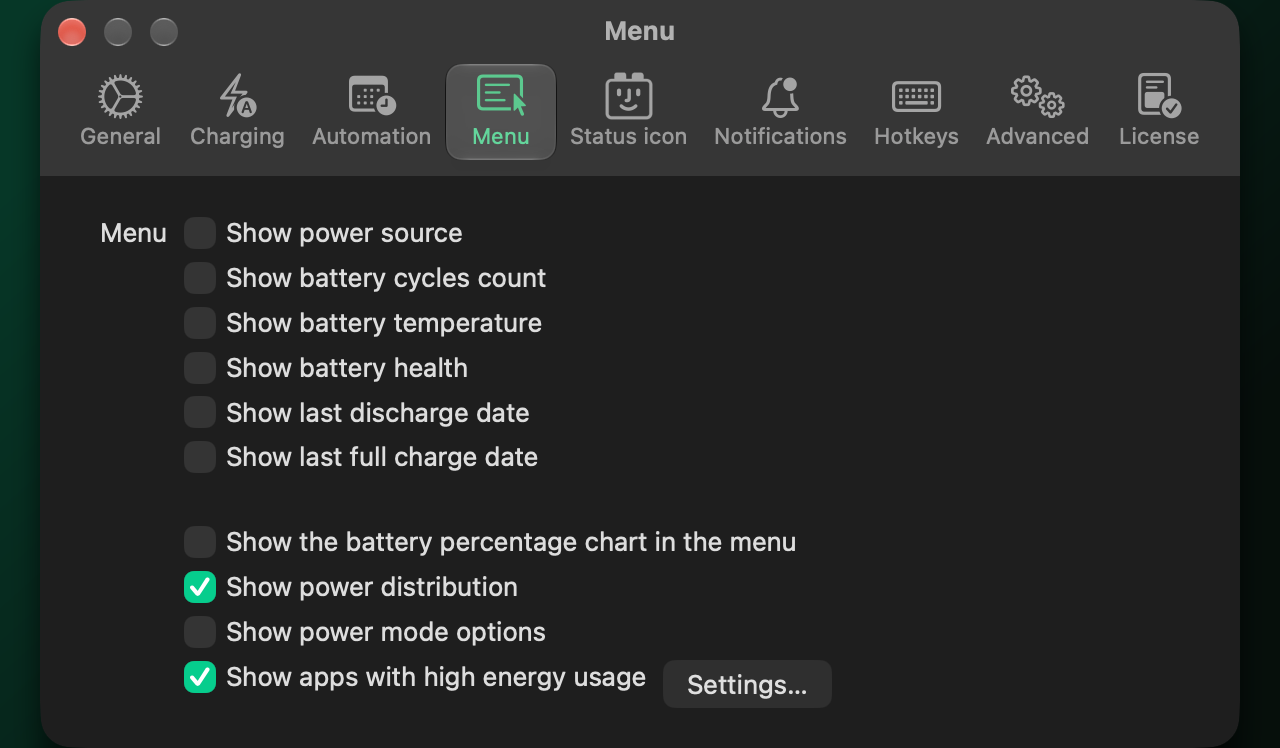
Battery cycles, temperature, health.
The readings macOS buries, put in your menu bar.
-
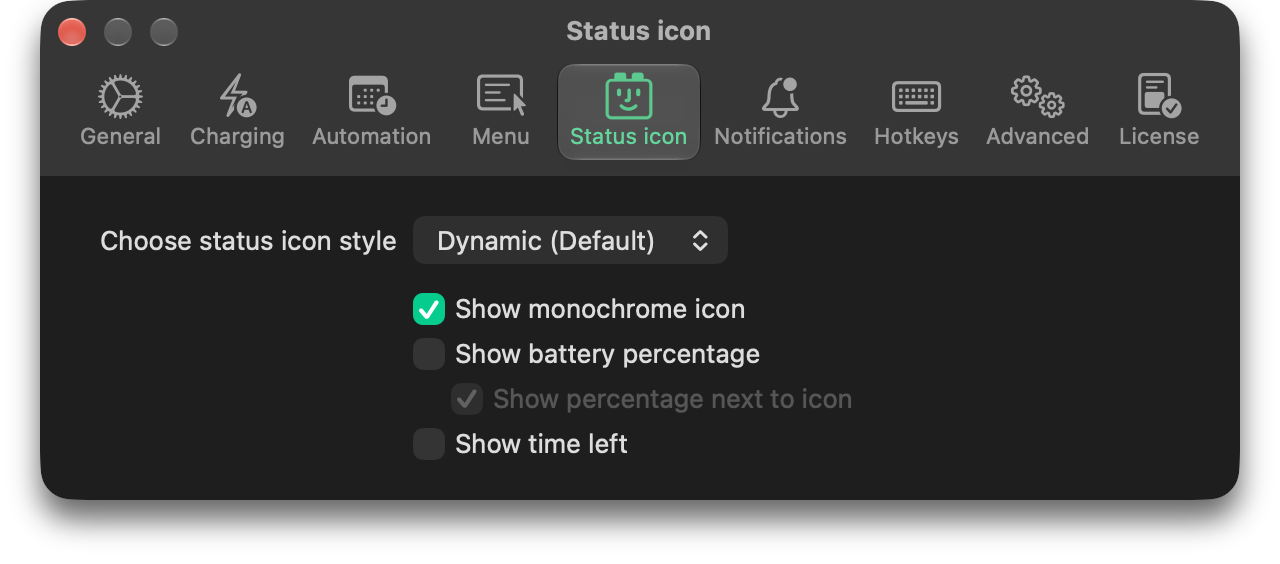
A menu bar icon you can live with.
Percentage, time left, monochrome or not.
-
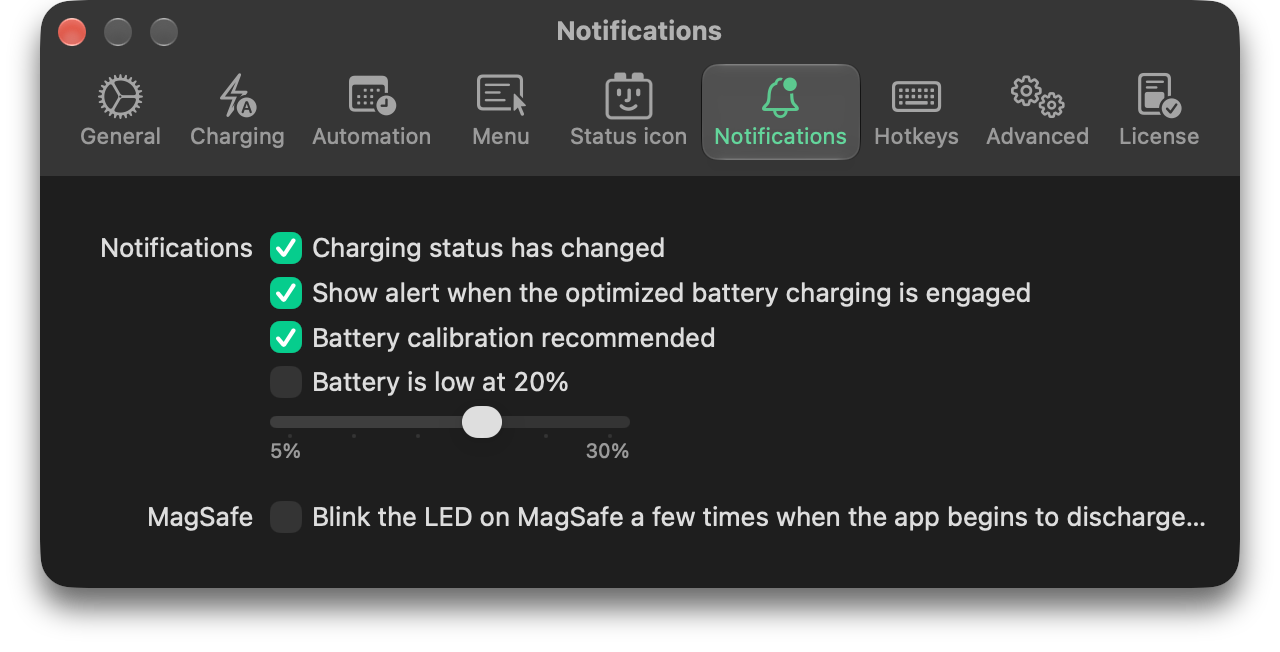
Told once, when it changes.
Charging state, calibration, and the rule that took over.
-
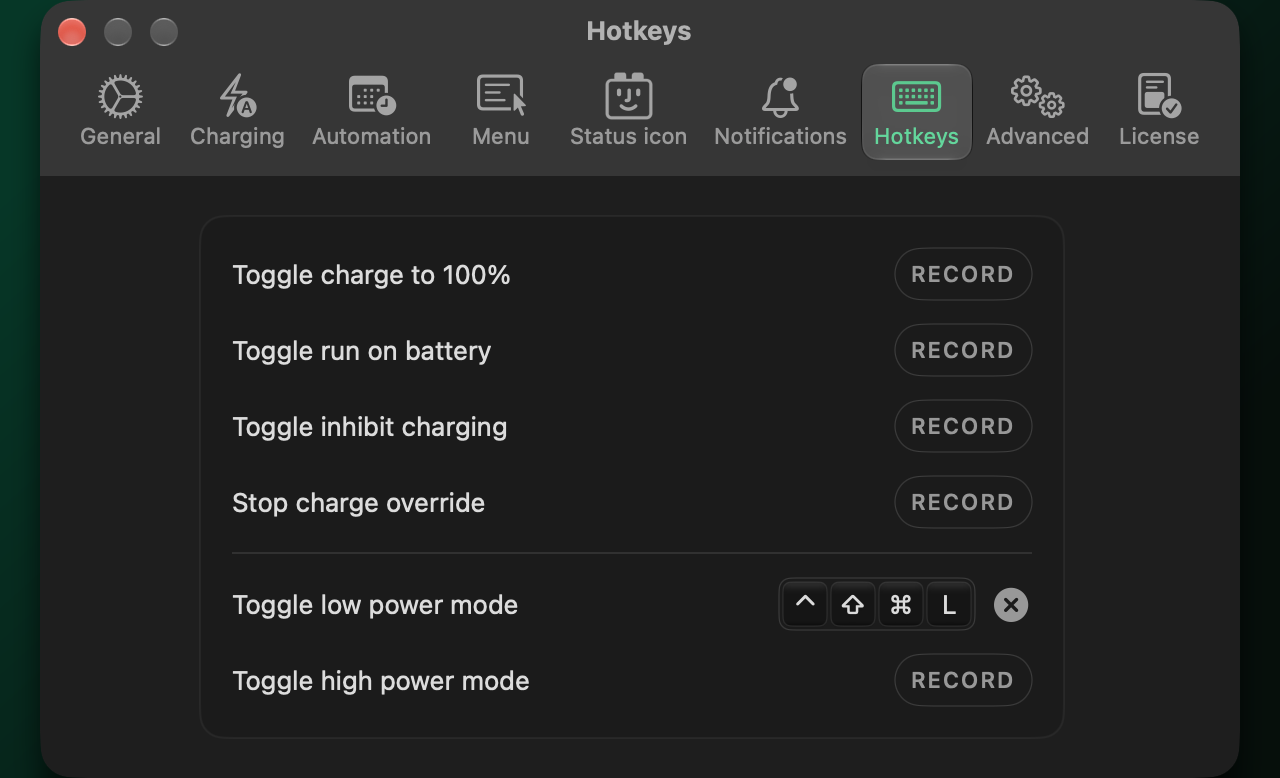
Power modes from the keyboard.
Low, high or automatic, on a global shortcut.


Questions
How do I limit battery charging on my Mac?
Install BatFi and set a charge limit. Your Mac stops charging there and holds it until you change it, or until you choose Charge to 100%.
Can I set a limit below 80%?
Yes. The limit in macOS goes no lower than 80%. BatFi holds any limit you choose, on macOS 27 too with BatFi 4.
What limit should I use?
80% is a good default for most people. Let the battery run down and charge fully from time to time, for example once a month.
Why does my Mac still charge to 100% sometimes?
From time to time macOS charges the battery to 100% to calibrate it. BatFi steps aside while it happens, and the battery goes back down to your limit afterwards.
Is it safe?
Yes. BatFi uses the same charging controls macOS uses. Keeping the battery at a lower charge reduces wear over time.
Which apps are draining my Mac’s battery?
BatFi’s menu shows the apps using a lot of energy right now, next to how much power is coming in and going out.
More in BatFi’s FAQ and its privacy policy.
$15, once.
Not a subscription. One licence covers every Mac you own.
brew install --cask batfi
Read the changelog.